
JAVA 3D & JRE INSTALLATION PROCEDURES
Your System Information:
Procedure 2:
Installer Applet to help you install JAVA 3D:
♦Clear browser cache(optional) and restart web browser(Internet Explorer, Mozilla Firefox, Google Chrome,Opera, Apple Safari, etc.).
Procedure 3:(By Copying Library)
Steps for Windows7(64bit) and Windows8(64bit):
Step 1:
Know your JRE home directory. In Windows the default JRE Home directory path is: C:\Program Files (x86)\Java\jre7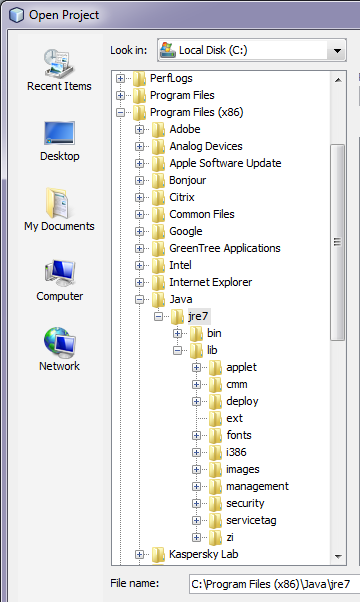
Step 2:
Download JAVA 3D Library for Windows. Click here.Step 3:
Extract the zip file somewhere in your computer.Copy JAVA 3D API files(j3dcore.jar, j3dutils.jar, vecmath.jar) within C:\Program Files (x86)\Java\jre7\lib\ext directory.
Copy JAVA 3D Native API files(j3dcore-d3d.dll, j3dcore-ogl.dll, j3dcore-ogl-cg.dll, j3dcore-ogl-chk.dll) within C:\Program Files (x86)\Java\jre7\bin directory.
Step 4:
Clear browser cache(optional) and restart web browser(Internet Explorer, Mozilla Firefox, Google Chrome,Opera, Apple Safari, etc.).Steps for Windows XP, Windows7(32bit) and Windows8(32bit):
Click here to download JAVA 3D Library. .
Default JRE Home directory path is: C:\Program Files\Java\jre7. And rest of the procedures are same as Windows7(64bit) and Windows8(64bit)